
Jira Rest API OAuth Two-Factor Authentication
Using Two-Factor Authentication with SecSign ID Plugin on a third party application using Jira REST API

Find out why our Two-Factor Authentication is the best, some key-facts for developers and why you should upgrade to SecSign for your business.

Learn more about the options of on-premise use and your own customized ID App in your corporate design.

Download the plugin as cloud version for a free and convenient protection.
Table of contents
JIRA is a web application for operational project management as well as for error management and troubleshooting. There are many 3rd party apps available, which can access Jira, to post, update or modify content. Many companies maintain their own inhouse solutions, to access Jira data in their own applications.
Those 3rd party applications use the Jira REST API to exchange information. The following tutorial describes why you should set up OAuth with SecSignID to secure your Jira REST API.
SecSign ID is a plugin for real two-factor authentication (2FA) for Jira. 2FA adds another layer of security to your installation by using a second token. In this case the physical token is your smartphone.
If you seek for more information about about two-factor authentication have a look at the Jira Marketplace or our Github site.
1. Login options with Jira REST
The Jira REST API is the primary way to interact with Jira remotely, whether you are building an app, scripting interactions with Jira or developing any other integration:
OAuth Authentication
If you are integrating directly with the Jira Cloud REST APIs it is recommended to use OAuth authentication method. The OAuth authorization framework enables a third-party application to obtain limited access to Jira resources. The third-party apps won’t store protected data like user passwords or credentials. OAuth is the recommended way to authenticate users to the Jira REST API. Read more about OAuth and SecSignID
Basic Authentication
For implementations with low security requirements, such as scripts and bots, it is possible to use Basic authentication method. It utilizes just plain old user credentials with name and password. Those credentials are transmitted in plain text and pose a security risk.
2. Configuration
A great starting guide to the Jira REST API with OAuth authentication is described in the Jira Developer Tutorial:
After Jira was set up properly, you have to register your 3rd party application under Administration > Applications > Application links.

Your client will require the following URLs to be able to make authentication requests to JIRA:
| OAuth Config | Value |
| request token url | JIRA_BASE_URL + /plugins/servlet/oauth/request-token |
| authorization url | JIRA_BASE_URL + /plugins/servlet/oauth/authorize |
| access token url | JIRA_BASE_URL + /plugins/servlet/oauth/access-token |
3. OAuth Client
The third-party app or client can be in whatever language you prefer, it just needs to implement the OAuth protocol. OAuth offers a collection of libraries and services that support OAuth 2.0 for common languages like Java, Php, Swift, Python, Ruby and so on.
Important: At the moment Oauth 2.0 is only available for Atlassian Connect add-ons. For REST API calls, only Oauth is supported.
The Jira Tutorial also offers an example client (rest-oauth-client-1.0.one-jar.jar) in java. You can find example clients in Perl, Php, Python, Ruby etc. in the bitbucket repository.
SecSignID Plugin needs to be installed in your Jira instance. Follow the instructions to set up SecSignID in Jira:
Refer to the Jira Tutorial OAuth on how to obtain a request token with the example client. After obtaining the request token from JIRA, you will get the access URL. The user needs to open the URL, in a browser or internal web view, to authenticate with Jira. If the SecSignID plugin is set up correctly, your users will be able to authenticate via their SecSignID.
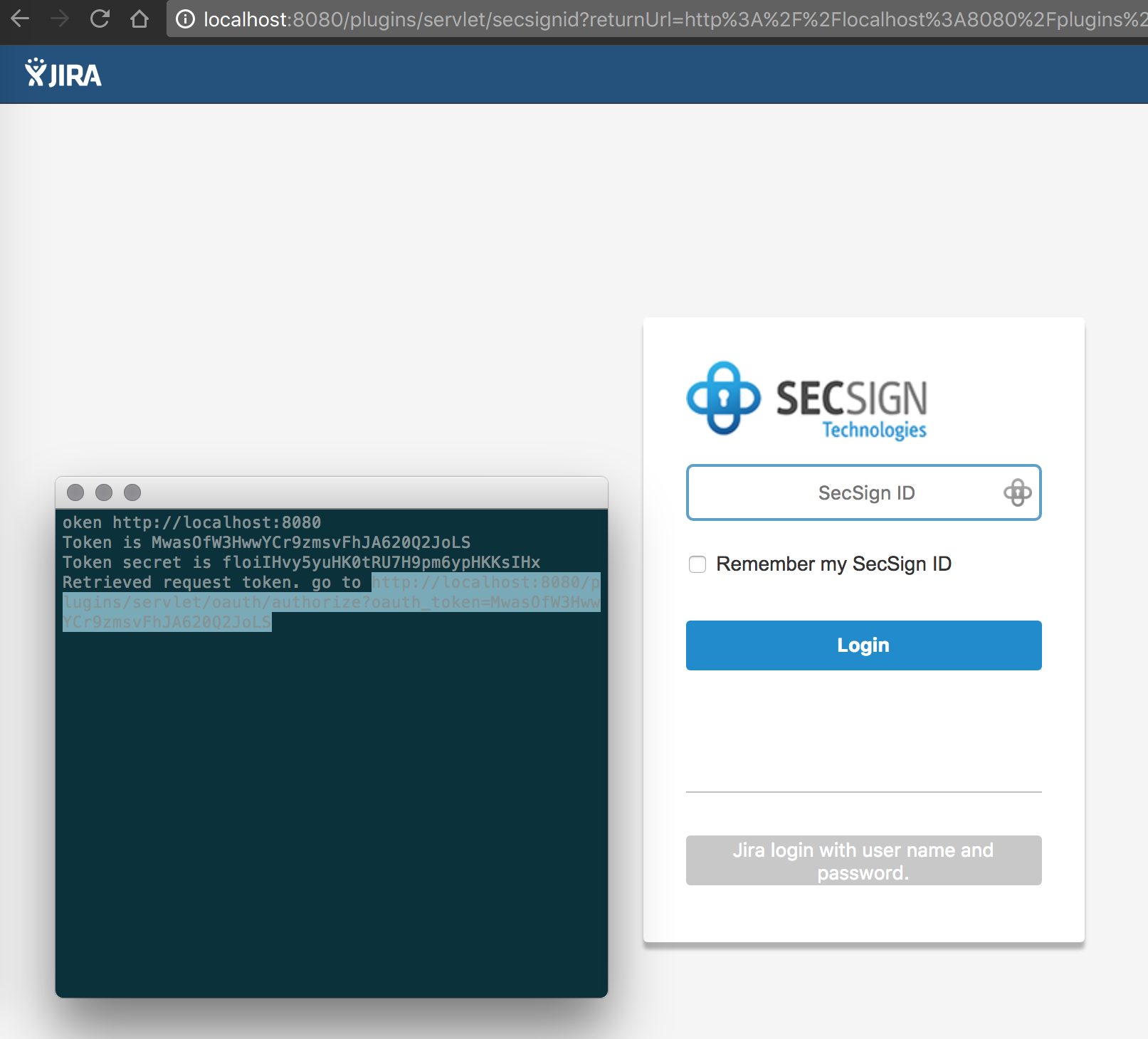

Jira will ask, if you give the third-party app the permission to read and write content under your account. After approving the access, Jira will confirm that you have successfully authorised the access. It gives a verification code which you’ll need to get the access token like described in the Jira Tutorial.
4. Available APIS
We provide an ever growing list of APIs and plugins to easily integrate the SecSign ID Two-Factor Authentication in any project. An overview is available at Plugin and APIs.
We do not only offer APIs in different programming languages but also plugins for CMS, Server and VPN environments, oAuth2 and many more. These plugins use our APIs and offer additional functionalities, for example user management, easy and native installation, logging or integration in firewalls or Active Directory.
The JIRA plugin for example uses the JAVA-API. The PHP-Api and JS-API is used by WordPress, Joomla, Drupal, Typo3 and many more. The ASP.net/C#-API is used for the Windows and Cisco VPN and the C-API is used for protecting Unix SSH services. The Objective-C API is used by our AppleTV and iPhone/iPad apps.

5. See for yourself
You can experience the SecSign ID two-factor authentication and the two-factor login by simply integrating the plugin into your website or test environment. Or you can try out the login process on our website without having to register first. You already have a SecSign ID or you want one? Login now and use the portal or use our hassle free registration.
See for yourself how fast and convenient the login process using challenge-response authentication with 2048-bit key pairs is. There is no need for passwords, and no passwords or other confidential information are ever transmitted. It is easy to integrate and simple to use.
For more information about the patented SafeKey procedure and it's unique security can be found here.
If you are missing an API for the programming language you are working with, feel free to contact us and we’ll find a solution with you. If you need help with the integration into an existing system or you can’t find the plugin for your content management system you are working with, don’t hesitate to contact our support team.
Your own ID-Server
On premise installations of SecSign ID offer the flexibility to connect with your preferred servers, services, and devices. And you can customize the SecSign ID with your own organization’s branding.

Why upgrade to SecSign?

On-premise or in the cloud
Choose between our SecSign ID Cloud or operate your own on-premise Two-Factor Authentication server.

Easy customization
Operate your own YourBrand ID app - Two-Factor Authentication customized to your needs.

Ready-to-use SDK
Integrate SecSign ID Two-Factor Authentication in existing apps with our ready-to-use SDK.

Easy user management
Use the Two-Factor Authentication Server to secure your company Active Directory/LDAP. Your own Identity and Access Management System, for example for mandatory updates and additional security features.

Cover all logins
Integration in any login environment: web, local, VPN, remote desktop, mobile logins and many more.

Plugins for all your needs
No need for complex integration: we have plugins for almost all environments.

Contact Us
Sales
Want to learn more about SecSign’s innovative and highly secure
solutions for protecting your user accounts and sensitive data?
Use our contact form to submit your information, and a SecSign sales representative will contact you within one business day.
Product Support
If you need assistance with an existing SecSign account or product
installation, please see the FAQs for more information on the most common questions. You don’t find the solution to your problem? Don’t hesitate to contact the
Product Support
I am Interested in