
Sign-Up with SecSign ID
It’s easy. Sign Up and start using your free account in seconds
With the SecSign ID you can secure accounts with the strongest next-generation authentication and comprehensive security on the market.
Simply log in, for example to the SecSign portal, with mobile private-key authentication on your mobile device using your SecSign ID.
Our Portal solution is designed from the ground up to eliminate vulnerabilities and gaps in data protection.
Don’t believe us? Read more about the easy login process or follow the steps on this page to try it for yourself and see how simple and easy it is!
First: Create your SecSign ID
Already have a SecSign ID? Skip to Sign Into SecSign Portal below.
To create your SecSign ID, please download and install the SecSign ID app for your Android or iOS device (mobile) or MacOS


Once downloaded, open the App and enter a simple user name to serve as your SecSign ID
Don’t worry: you don’t need to create a long or complicated user name with numbers or special characters.
Do you have specific requirements for your users ID, for example a company Email address or existing user names? We offer customized enrollment procedures to comply with your company standards. For more information contact us.

Follow the instructions in the App and enter a 4-digit PIN to use for your SecSign ID
Your PIN will never be transmitted or stored. It will be used only to secure your private key on your mobile device.
For iPhone users the touch authentication is set on default. To use the PIN for authentication simply change the ID settings. For Android users the fingerprint authentication can be setup in the corresponding settings.
Now you can sign into SecSign Portal
Important – before getting started, read first the four steps
Login to SecSign Portal
Log into the Portal with your SecSign user name
No confidential data is ever entered through your browser. Once you enter your user name, an access symbol will be shown in your browser.
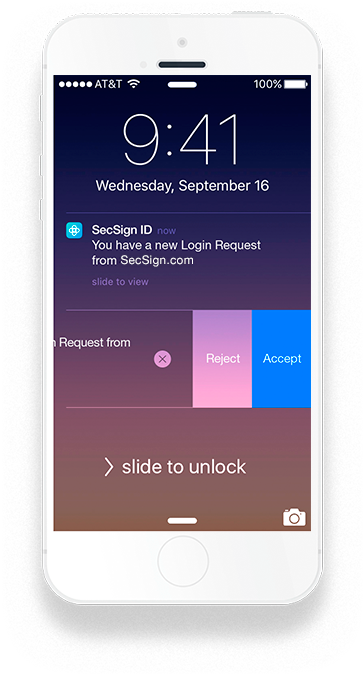
Check your smartphone
You will receive a notification on your mobile device indicating that an authentication request is waiting. Tap in the notification and it will open SecSign ID App, now tap your user ID.

Enter your PIN
Enter your PIN in the SecSign ID app. Your PIN is used to encrypt the private key on your mobile device and verify your possession of it. The PIN is never transmitted or stored on a server.
For iPhone users the touch authentication is set on default. To use the PIN for authentication simply change the ID settings.

Choose the correct access symbol on your phone to confirm your identity
Using your SecSign ID app, tap the access symbol that matches the symbol shown in your browser. This provides final confirmation that you initiated the browser login and completes the authentication process.
Or simply waive the access pass. More information on how to login without an access pass can be found here.
Start using SecSign Portal!
For free and no strings attached
TRY YOUR FREE SECSIGN SECURE PORTAL NOW
ON-PREMISE PORTAL- Your custom online portal for maximum security and customization
- Turn your own servers into a secure cloud
- Deploy secure file sharing and storage on your own servers
- Gain complete control over your own file sharing and
storage solution - Completely customizable: URL, company logo, design and many more options
- No need to trust third party security
- Easy collaboration with outside users by granting secure
access through Two-Factor Authentication - Easy to install and deploy
- Full installation support available

Contact Us
Sales
Want to learn more about SecSign’s innovative and highly secure
solutions for protecting your user accounts and sensitive data?
Use our contact form to submit your information, and a SecSign sales representative will contact you within one business day.
Product Support
If you need assistance with an existing SecSign account or product
installation, please see the FAQs for more information on the most common questions. You don’t find the solution to your problem? Don’t hesitate to contact the
Product Support
I am Interested in