SecSignID Plugin: Keycloak

2022-08-12 5 minutes to read

Verwenden Sie in Ihrem Keycloak-System die SecSign ID Zwei-Faktor-Authentifizierung, die Ihnen eine einfache und zugleich hochsichere Benutzeranmeldung mit einem iOS- oder Android-Gerät bietet und Desktopanwendungen absichert.

Die SecSign ID Extension bietet eine echte Zwei-Faktor-Benutzerauthentifizierung (2FA) für Ihr Keycloak-System. 2FA fügt eine zusätzliche Sicherheitsschicht hinzu, indem es das mobile Gerät des Nutzers als zusätzlichen physischen Token mit in die Authentifizierung einbindet. Mehr Informationen zur Zwei-Faktor Authentifizierung finden Sie hier.

Installation

Installation of the extension

Requirements

  1. A fully working Keycloak installation.
  2. The extension as .jar-file (Download here)

Installation

  1. Shutdown the Keycloak-Server
  2. Copy the .jar-file (“secsign-authenticator.jar”) to the subfolder “providers” of the keycloak installation folder
  3. Rebuild the Installation of keycloak with the command “kc.sh build” in the “bin” subfolder of keycloak
    This will not erase any settings, It justs loads all new found extensions to the system
  4. Afterwards start the server (e.g. with “kc.sh start” or “kc.sh start-dev”)
  5. Login as admin to the keycloak console
  6. Choose the real that shoud be secured by the 2FA
  7. Open the “Authentication” settings
  8. If you already use an own flow, choose it. Else you need to create a Flow by copying an existing or creating a new one.
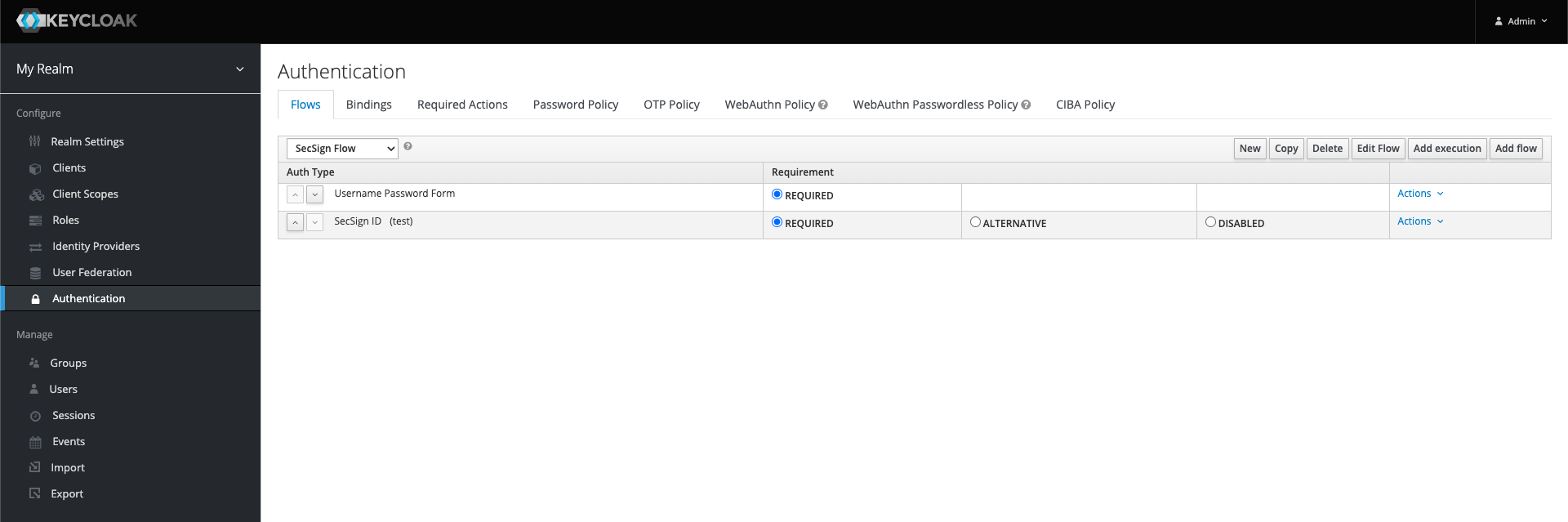
  9. In the execution order there has to be a step which identifies the User (e.g Username Password Form) in front of the SecSign ID Authenticator. In a new flow you can do it by “Add execution”
  10. Subsequently please add “SecSign ID” Authenticator” by “Add execution”.
  11. If you added the authenticator, please change the “Requirement” to “Required”, else 2FA can be skipped or is automatically skipped for users without
    a saved SecSign ID.
  12. Flow with SecSign ID Authenticator

  13. If you own an on-premise SecSign ID server, you can choose “Config” on the right side on the option “Actions” and follow the help below on “Configuration”
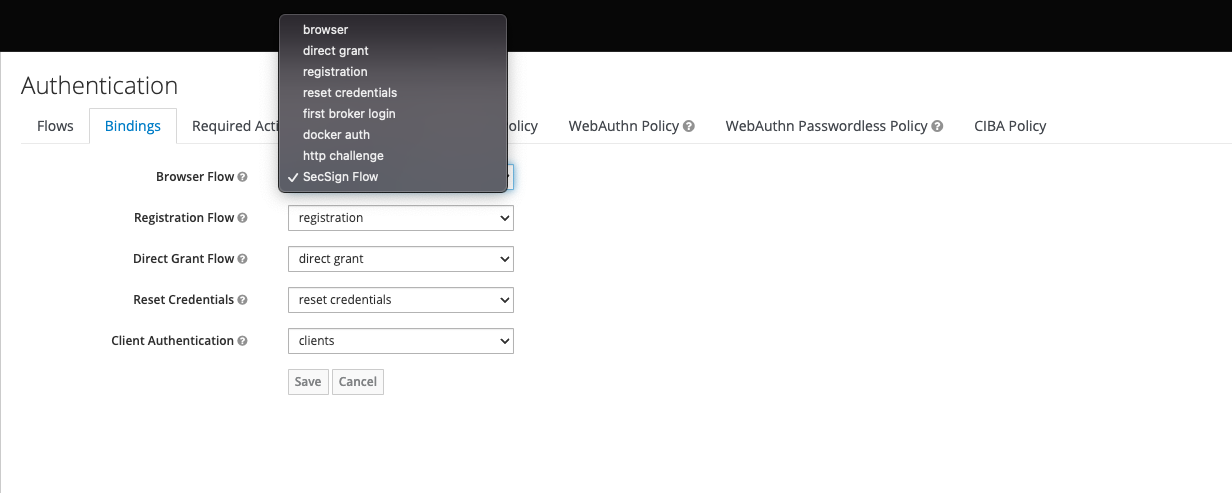
  14. To use the created flow, choose “Bindings” and select your flow as the “Browser Flow” (for Login in the browser).
  15. In the tab “Required Actions” enable the checkbox at “Enabled” beside “SecSign ID”, so users without a SecSign ID can create one on login.
  16. Selection of the flow

Konfiguration

Configuration of the extension

There are multiple configurations:

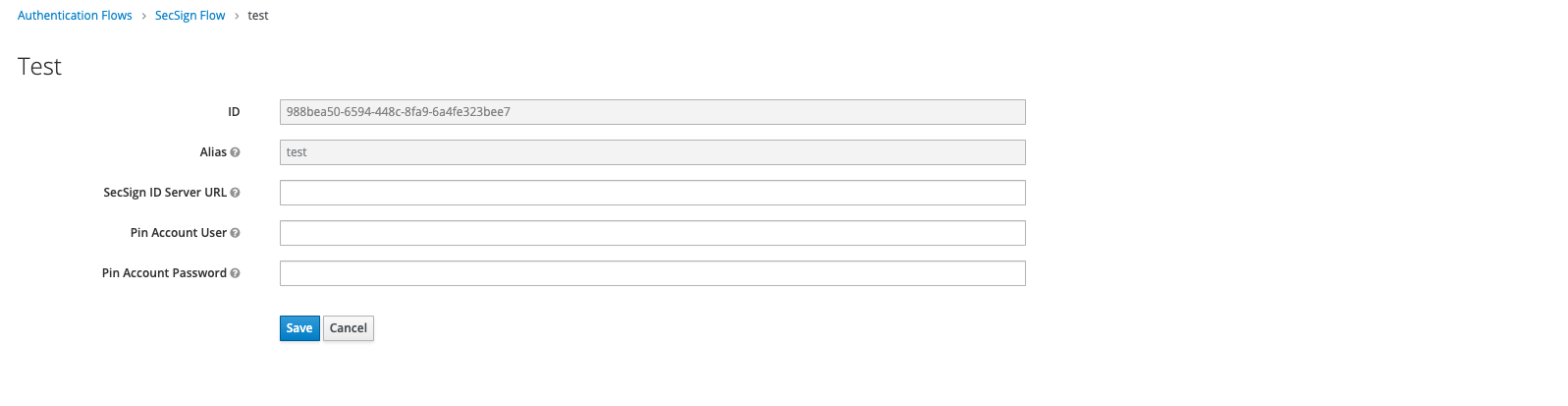
  1. In your created flow you can choose “Config” on the menu for “Actions”, to setup your on-premise SecSign ID Server.
    For this you need 3 settings:
  2. Config of the Secsign Authenticator

    • SecSign ID Server URL:The URL of the on-premise SecSign ID Server. (e.g: https://idserver.yourcompany.com)
    • Pin Account User: The PinAccount, to use the server. This Application User needs access rights, to create SecSign IDs on the server.
    • Pin Account Password: The password of the PinAccount, to use the server.
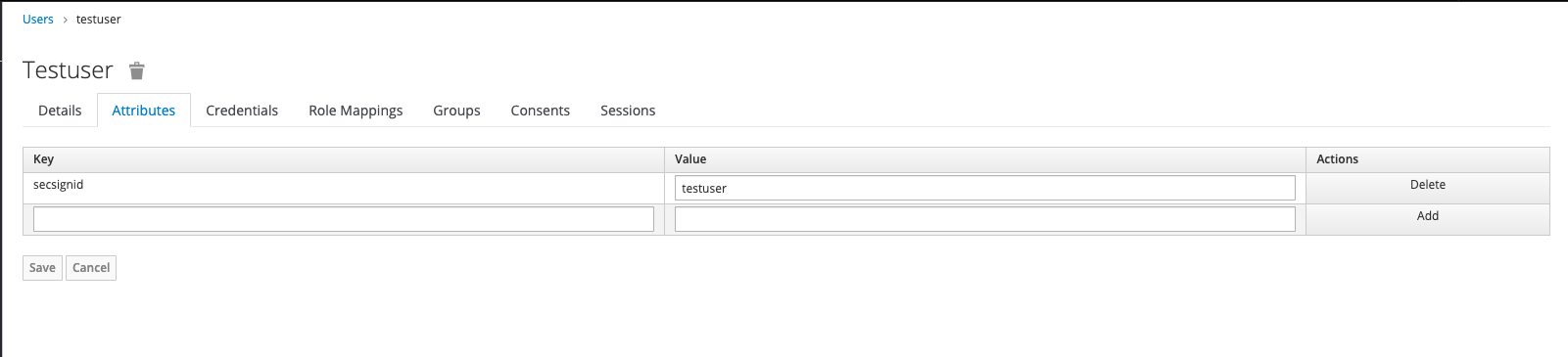
  3. Furthermore you can change or add SecSign IDs of single users. For that navigate to the “Users” option on the keycloak admin console and choose the user to change the SecSign ID for. In the tab “attributes” you can add or change the attribute “secsignid”.
  4. Attributes of the user

Ablauf

Procedure of Login

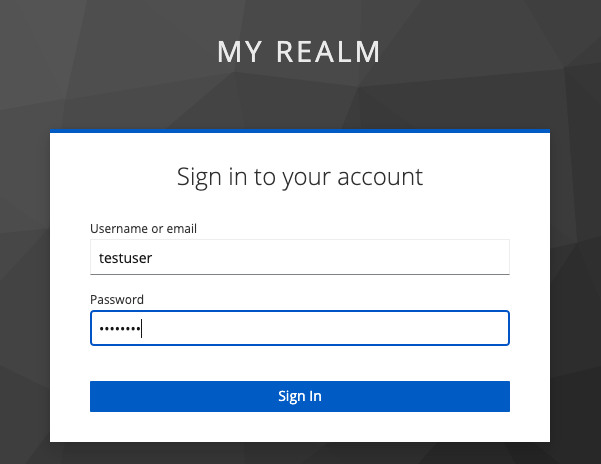
  • The user identifies in the first step, e.g. by entering username and password.
  • Afterwards there is a check, whether the user has a SecSign ID.
  • If the user already has a SecSign ID saved, the authentication is started for that.
  • If the user has no SecSign ID, one is created for him and the corresponding QR-Code is shown on the screen.
    After scanning the QR-Code with the smartphone and creating the SecSign ID on the smartphone, the authentication is started automatically.
  • On the next login, the user can use the SecSign ID immediately.

Username und Password Login Form QR-Code for creation of the SecSign ID Auth-Process with SecSign ID

Your own ID-Server

On premise installations of SecSign ID offer the flexibility to connect with your preferred servers, services, and devices. And you can customize the SecSign ID with your own organization’s branding.

Learn More
On Premise 2FA ID

Latest Blog Posts, Updates & Features

SecSign ID Server passed FIDO Certification

We are happy to announce that the SecSign ID server has passed the official FIDO certification program of the FIDO Alliance. This will allow you to use the complete FIDO2/WebAuthn standard for passwordless 2FA sign-ins in your exi ...

Mehr Lesen

Two-Factor Authentication with Fido2 / WebAuth

The FIDO2 Project is a set of standards developed by the FIDO Alliance and the World Wide Web Consortium (W3C) to create a strong authentication protocol for the web. It consist mainly of the WebAuth standard for the browser part ...

Mehr Lesen

Protecting the Home Office VPN with 2FA

In the recent weeks, home office work has increased potentially. And while employees are practicing social distancing from their home computer, attackers are working hard to exploit security issues in this situation that is unfami ...

Mehr Lesen
SecSign 2FA